
Working with Documents
Use LM Studio Bionic for research, writing, analysis, and document tasks.
For document work, Bionic gives you a managed sandbox for iterating on documents and other files. Use one project for work that should share the same goal and workspace.
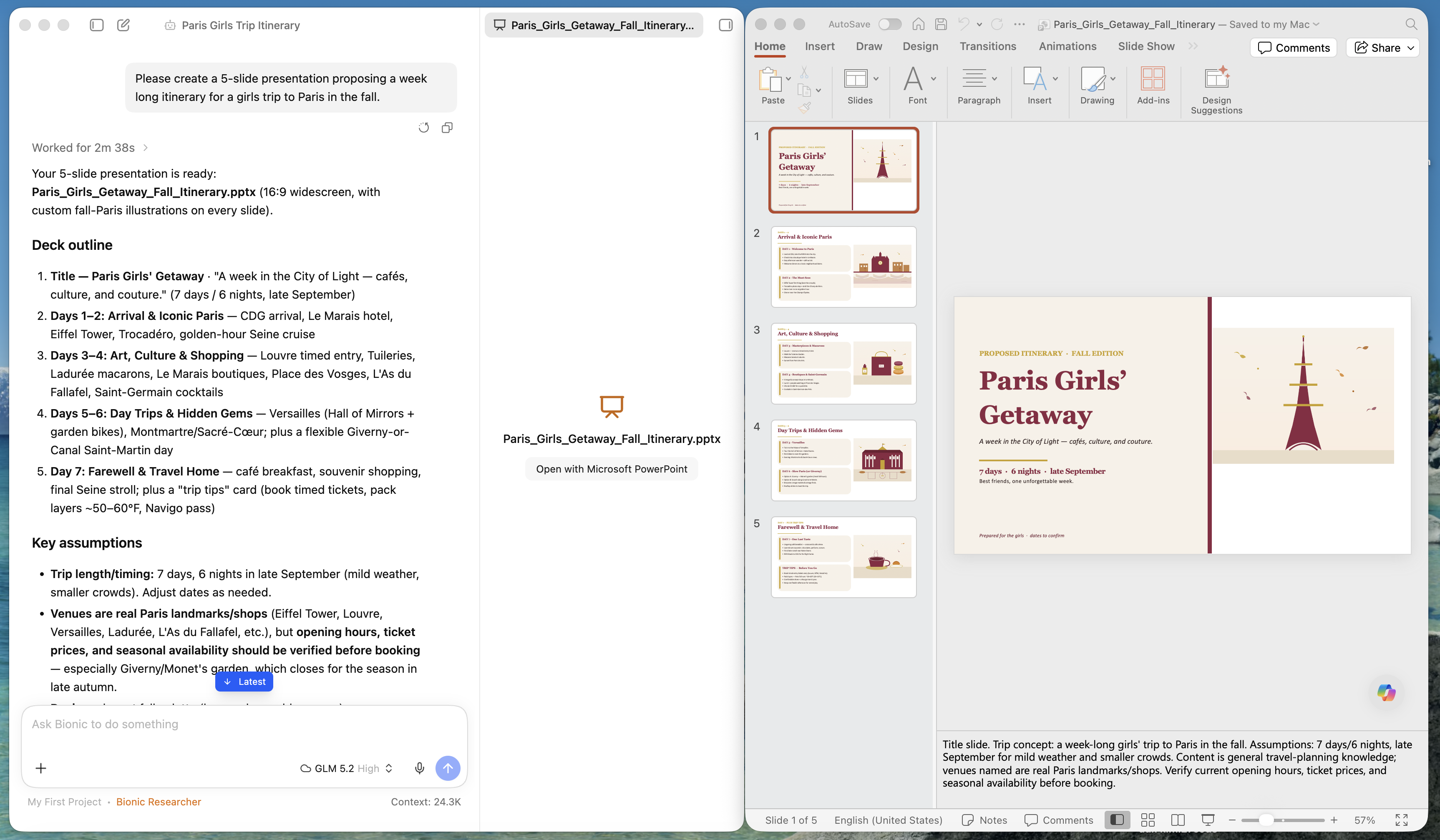
Give Bionic documents to work with, or ask it to generate new documents, decks, spreadsheets, and more from scratch.
Example use cases:
- Researching a topic and comparing sources.
- Summarizing notes or documents.
- Drafting and revising reports.
- Creating presentations or other deliverables.
- Brainstorming and organizing ideas.
- Analyzing tables, text, and other non-code files.
Enable Web Search
Toggle on Settings → General → Web Search to allow Bionic to pull in fresh context from the web.
A simple workflow
- Create a new Project.
- In a new session, attach files or describe what Bionic should research.
- Recommended: ask Bionic for a specific result and file format.
- Review the response and generated files.
- Continue in the same session for revisions, or start a new session for a separate task.
For example:
Compare the three attached proposals. Create a concise decision memo with a recommendation, risks, and a comparison table. Save it as
decision-memo.md.
For slide or report work, include the audience, length, tone, and output filename:
Turn these meeting notes into a 6-slide presentation for a project review. Keep each slide brief and save it in the Workspace.
Working with documents and files
Bionic can work with documents, spreadsheets, presentations, PDFs, images, and text files. Available previews and editing behavior depend on the file format.
Open the right sidebar to see the project workspace.
Project files are files managed by this project, including files you drag into Bionic and files that Bionic creates.
External files stay in their original locations, but are directly accessible to Bionic. When Bionic edits an external file, the change is made directly to that original file.