Skills
Use skills to teach Bionic repeatable actions and specialized workflows.
Skills let you give Bionic reusable instructions for a specific capability, body of knowledge, or repeatable task. They use the standard Agent Skills format: a SKILL.md file with instructions and optional supporting files.
Bionic can use skills you install, skills it creates with you, and compatible skills you already use in other apps such as Codex and Claude Code.
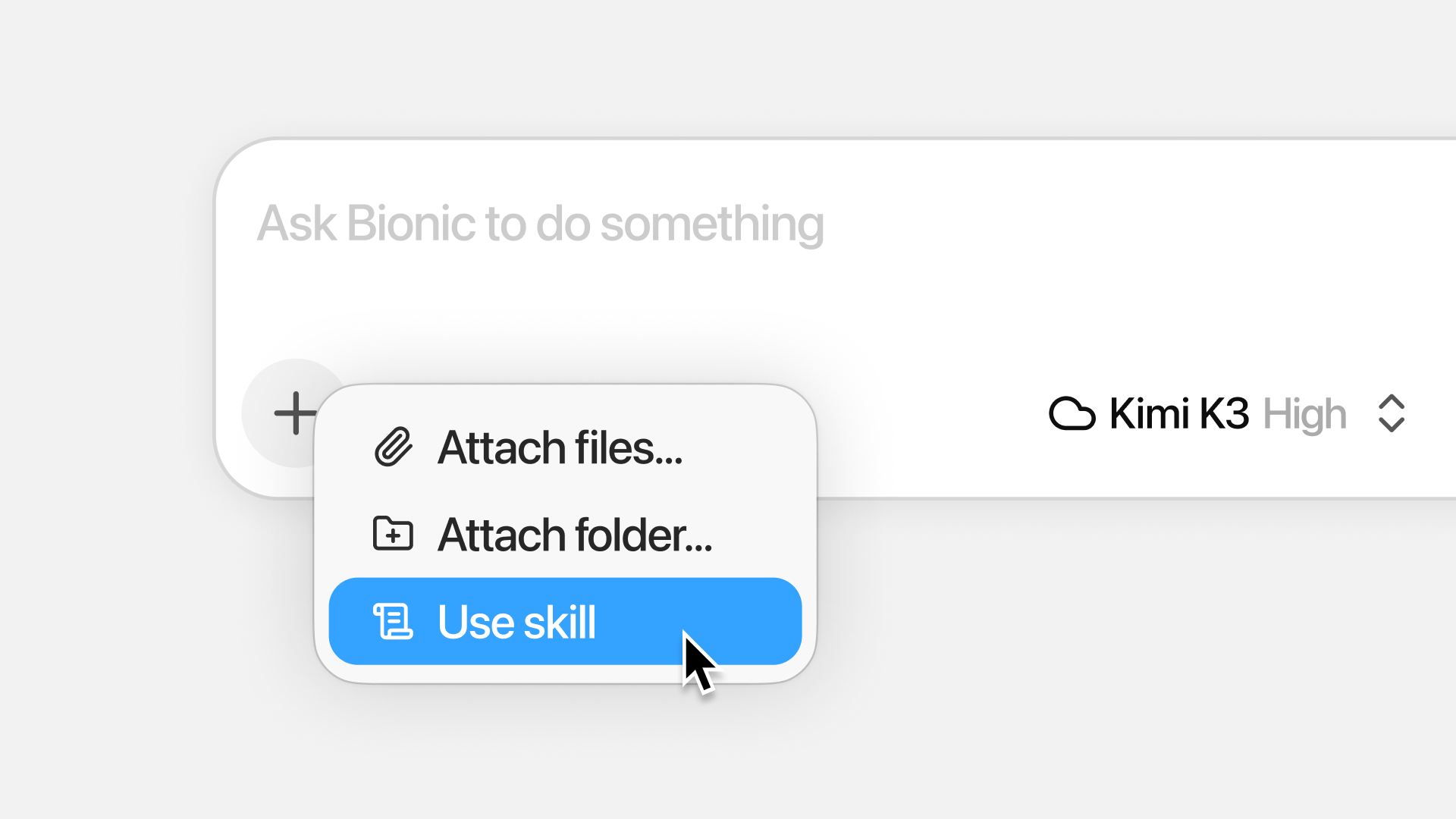
Skills give Bionic reusable guidance for specialized tasks.
Use a skill
Skills are used automatically for relevant tasks when Bionic determines one is helpful. To trigger a skill explicitly, type @ in the chat composer. This opens the reference palette, where you can select a file or skill.
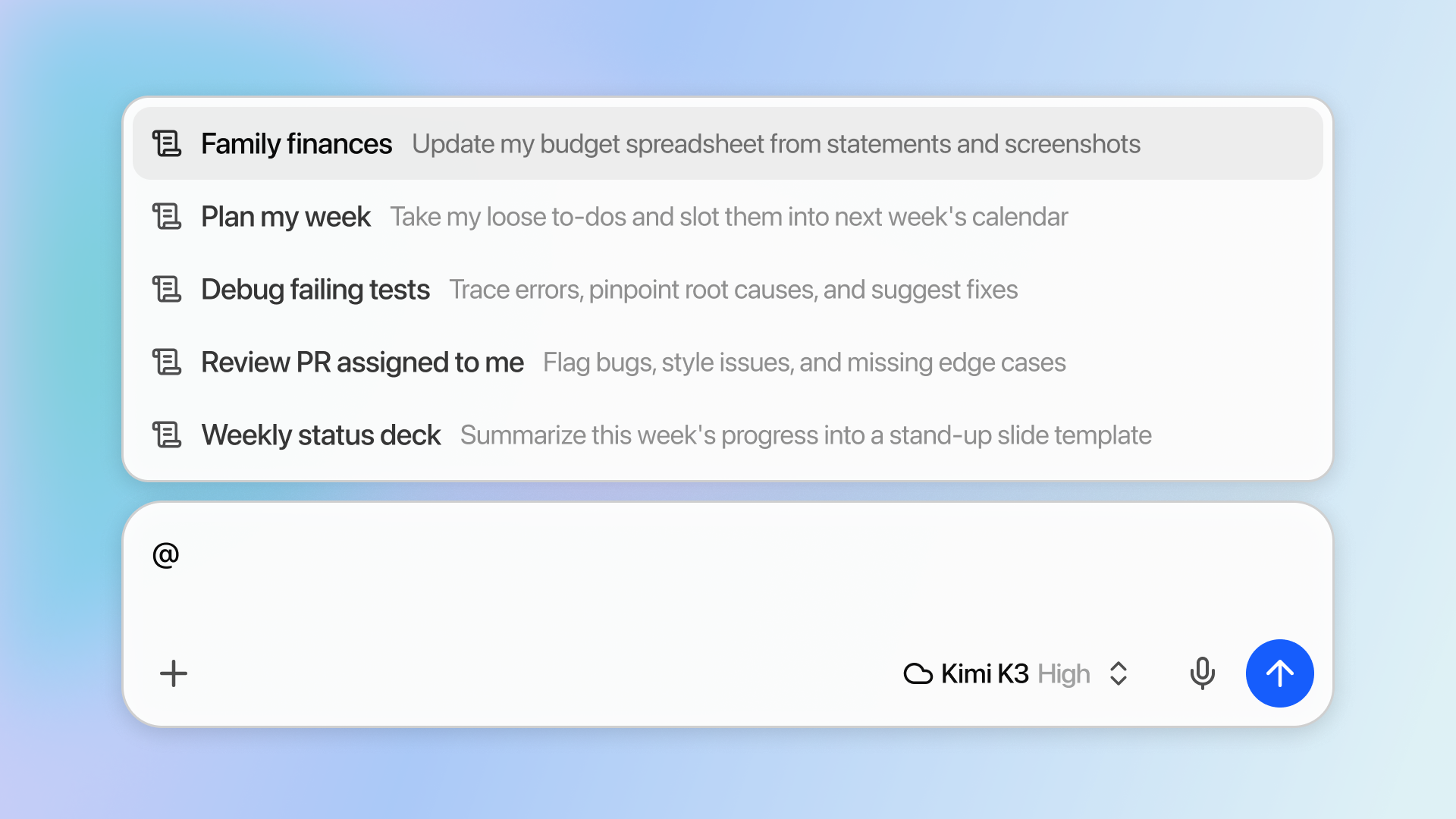
Type @ to bring up the skill selector.
Whether Bionic selects a skill automatically or you reference one explicitly, it inspects the skill file and decides how to apply its instructions to your task.
Create a skill
Bionic can create skills for you. This is useful when you finish a task that worked well and want to capture the workflow for next time.
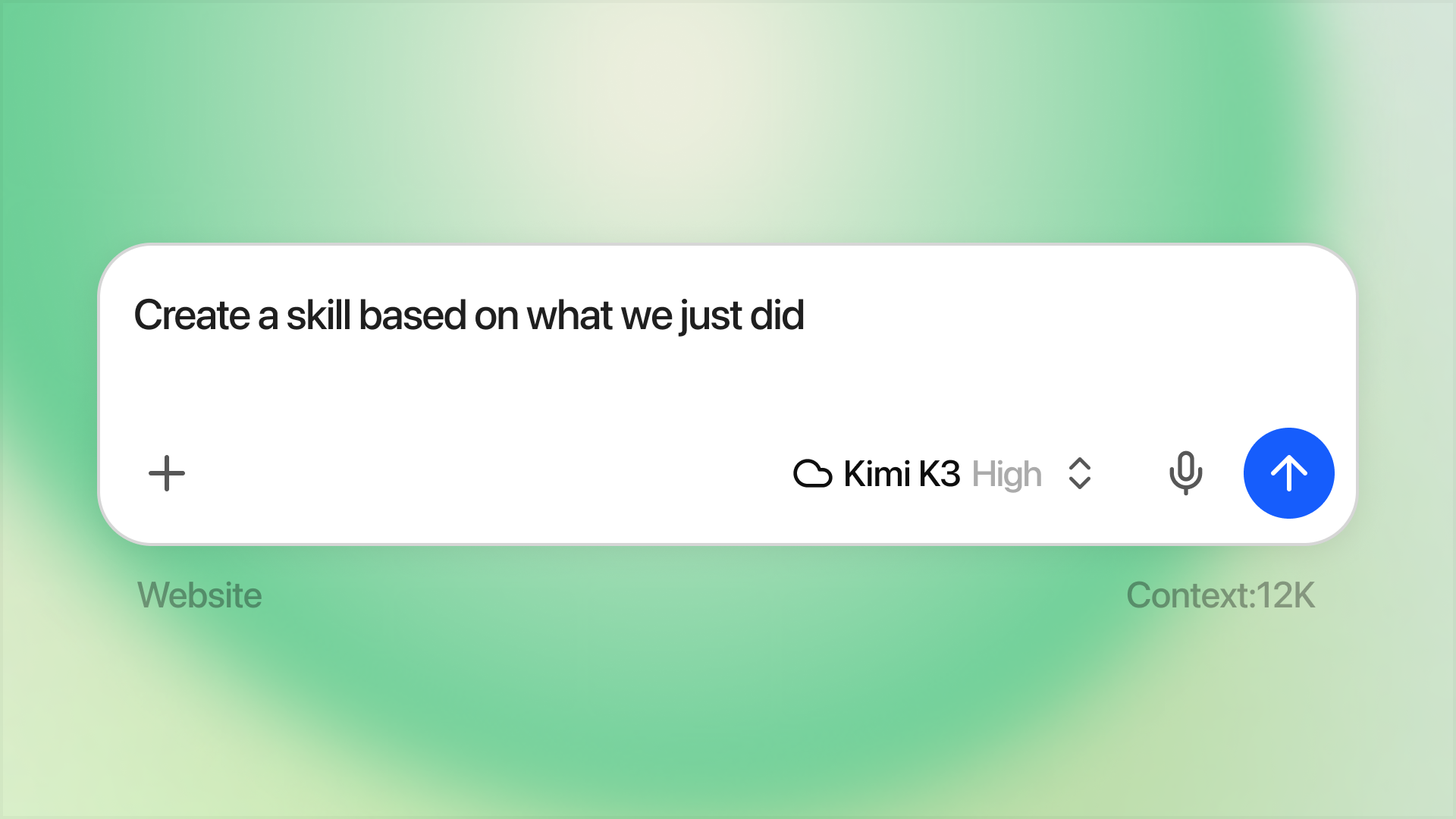
Ask Bionic to create a skill from a successful workflow.
For example, after completing a repeatable task, ask:
Create a skill based on what we just did.
Bionic may ask clarifying questions, then draft the skill so you can reuse it in future sessions.
You can also workshop a new skill with Bionic from scratch. Describe the workflow, inputs, outputs, and standards you want the agent to follow.
Install a skill
You can ask Bionic to install a skill from a URL, such as a GitHub repository or a direct link to a skill.
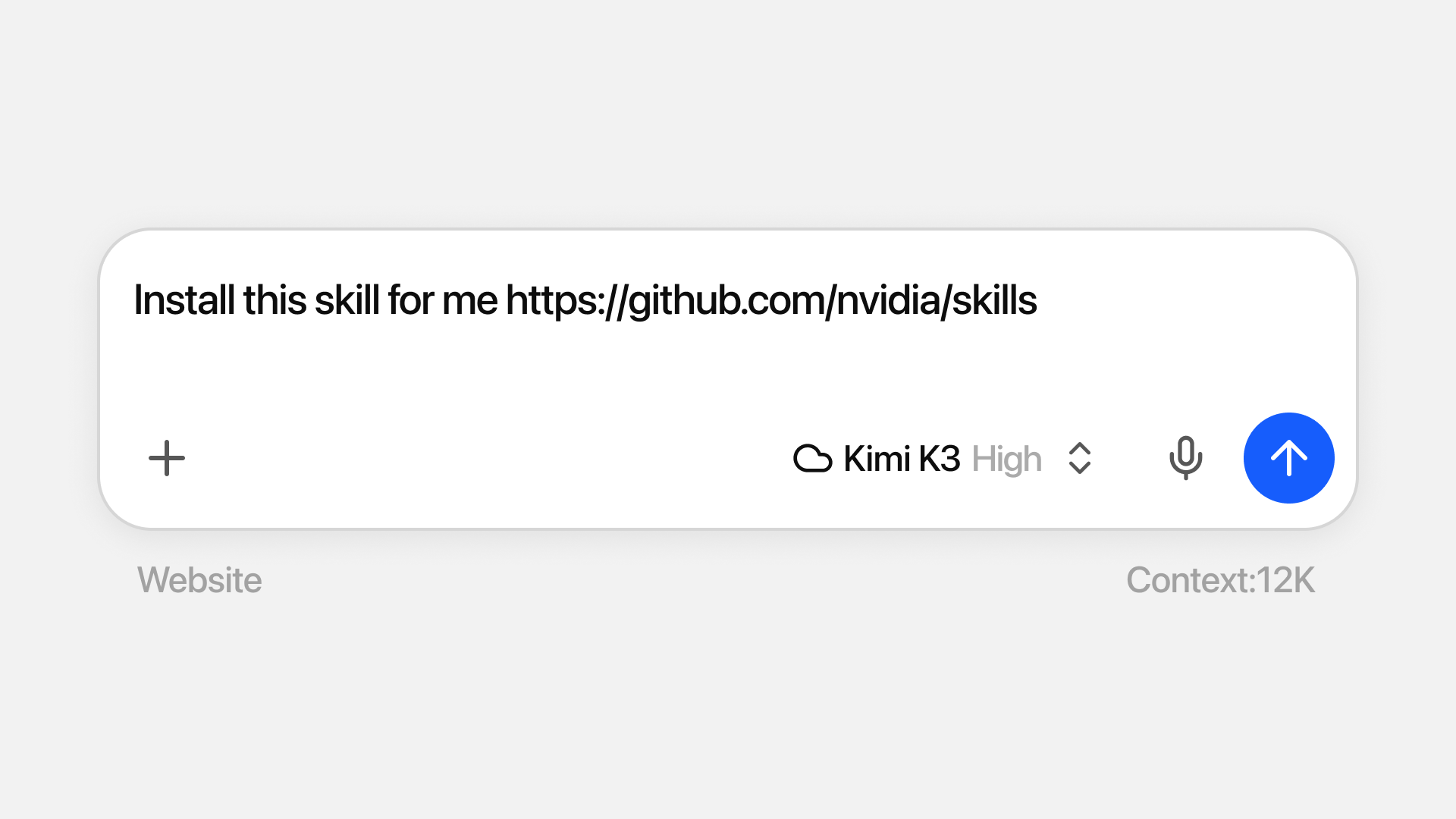
Give Bionic a URL and ask it to install the skill.
You can also invoke @Install Skill when you want Bionic to help add a skill.
If you already have a SKILL.md file, add it in Settings → Skills to make it available to Bionic.
Use skills from other apps
Bionic can use compatible skills from other apps, including Codex and Claude Code.
To manage these skills, go to Settings → Skills → Use skills found in other apps. From there, choose which skills should be visible to Bionic. You can disable individual skills from the ••• menu.
Good skill use cases
Skills are best for workflows that have repeatable steps, a consistent output format, or specialized instructions. Examples include:
- Reviewing documents against a checklist.
- Creating presentations, reports, spreadsheets, or other deliverables.
- Applying a team style guide or writing standard.
- Following a recurring research or analysis workflow.
- Working with a specific file format, tool, or integration.
Tips
- Use
@when you know which skill you want Bionic to apply. - Ask Bionic to create a skill after a successful task you expect to repeat.
- Include examples, required outputs, and constraints when creating a skill.
- Review newly created or installed skills before relying on them for important work.