
Set Up Billing and Add Credits
Sign in, manage a personal or team plan, and choose who pays for cloud model use.
Cloud models require an LM Studio account with available credits. Local and LM Link models do not use Bionic cloud credits, and can be used without an LM Studio account.
Sign in
- Open Settings.
- Under General, find Account.
- Select Sign in and finish signing in through your browser.
- Return to Bionic.
Add credits for personal use
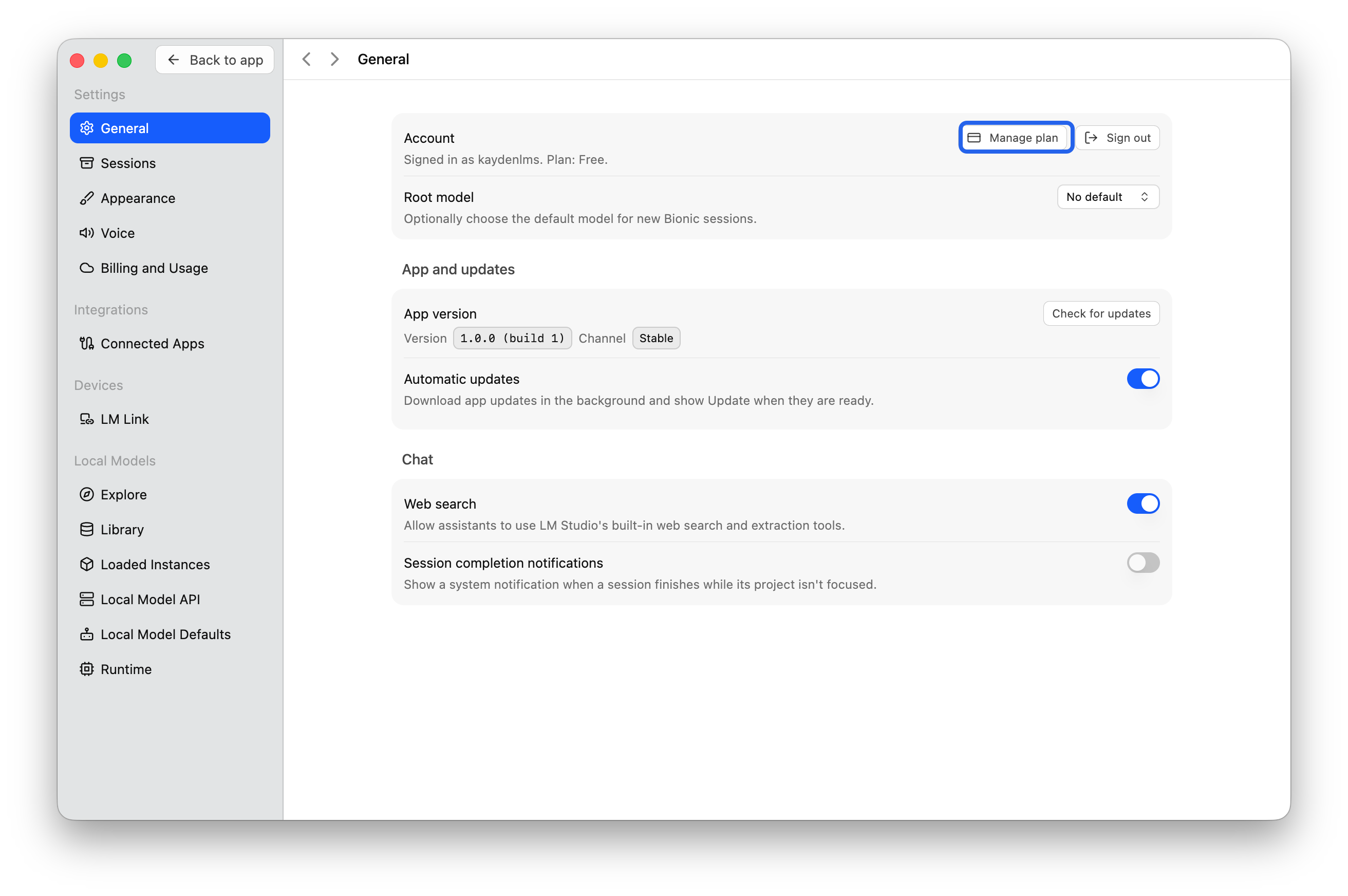
- In Settings under Account, select Manage plan.
- You'll be redirected to your account on the LM Studio Hub. Navigate to Cloud Inference under Features to add more credits to your account.
- Complete checkout and ensure the new amount is reflected under Available Balance.
- Return to Bionic and open Billing and Usage. Refresh to ensure the new balance is reflected.