
Coding
Work with a local codebase using Bionic's search, editing, and shell tools.
Point Bionic to a local working directory to use it for tasks that require understanding or changing a codebase.
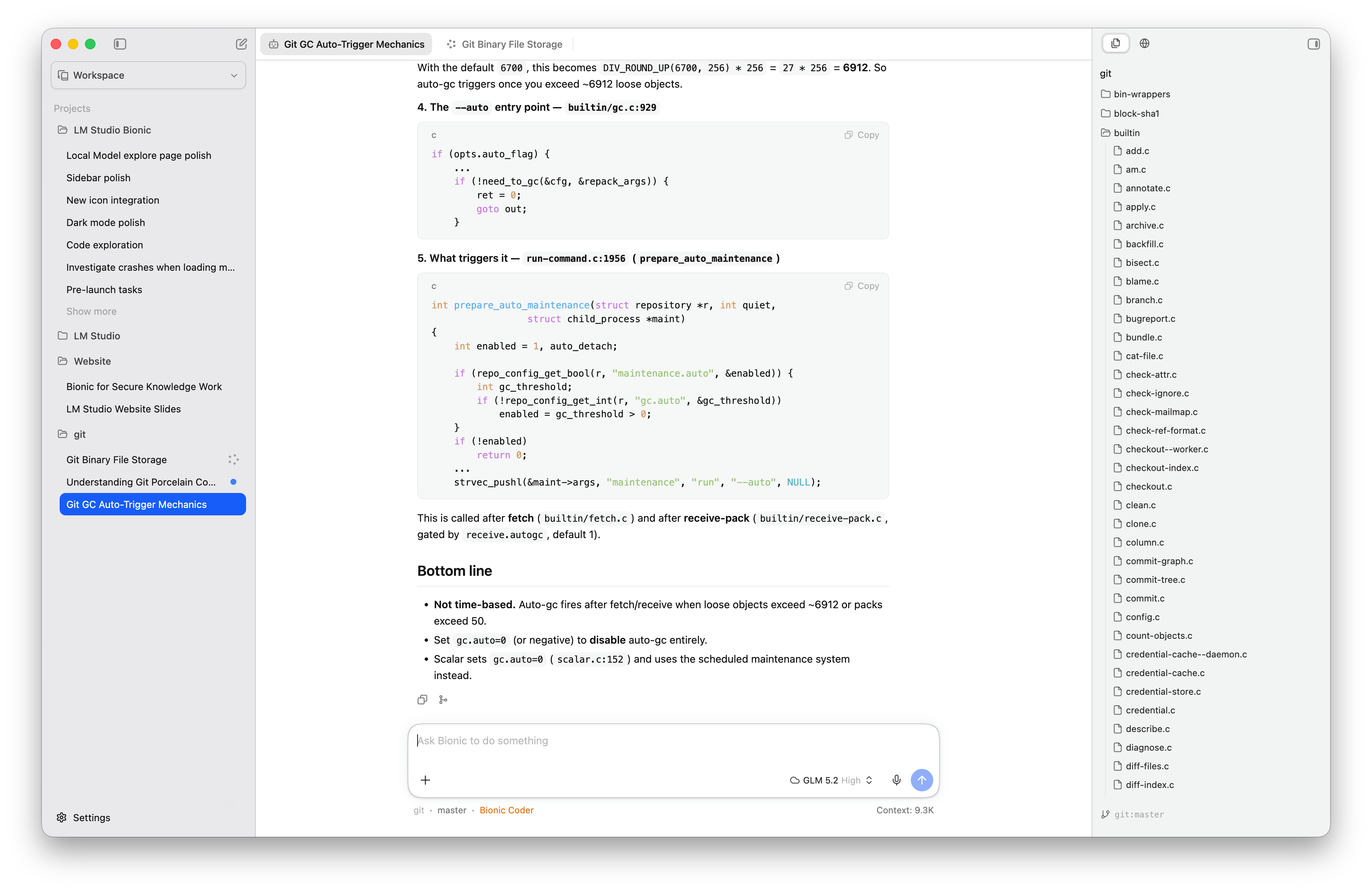
Bionic can inspect local codebases, explain unfamiliar code, and help you make changes.
Open a codebase
- Create a new Project and give it a name
- Toggle on Allow coding
- Select Choose a folder for Bionic to work in
- Choose the root folder of your codebase.
- Click Create
If you need a different folder later, open the right sidebar to see your working directory. From the working directory options, select Change working directory....
Bionic indexes the selected folder so it can search project files. If the folder is a Git repository, the Files panel also shows the repository and current branch.
What to ask Bionic to do
Coding projects support tasks such as:
- Finding how a feature is implemented.
- Debugging a failing behavior.
- Refactoring code across several files.
- Implementing a feature.
- Adding or updating tests.
- Updating documentation.
- Reviewing a multi-file change.
For example:
Find the code that validates uploaded images. Explain the current flow, add support for the new size limit, update the tests, and run only the relevant test suite.
Use an inspect, change, test workflow
For safer results:
- Ask Bionic to inspect the repository and explain the relevant code.
- Confirm the intended change and constraints.
- Let it edit the files.
- Ask it to run focused tests or checks.
- Review the inline diffs and your Git diff.
For a large task, ask Bionic to divide the investigation into smaller parts. It can search the repository and use sub-sessions to investigate in parallel when appropriate.