Introducing Agent Remote Control
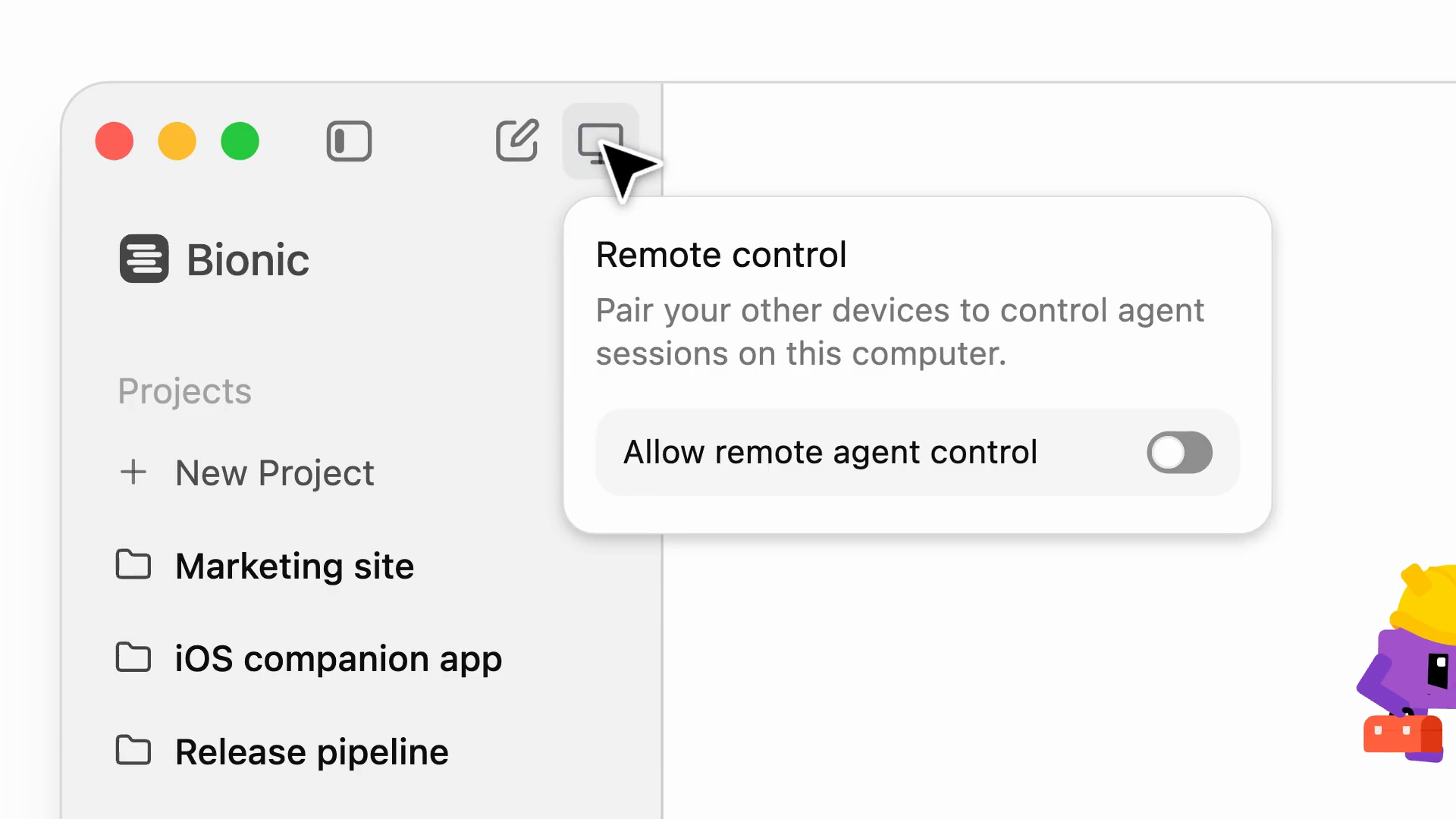
Each machine decides whether your other devices can control its agent sessions.
Bionic now supports desktop-to-desktop remote control. Turn any machine into an agent host, then create, manage, and continue its projects and sessions from your other devices.
That machine can be a laptop, a PC, a dev box, or a VM in the cloud. You operate it just like the machine in front of you, and everything travels end-to-end encrypted over LM Link.
Built on LM Link
Remote control runs on LM Link, our end-to-end encrypted transport between your devices, built in collaboration with Tailscale. Until now, we've used LM Link to let you load large models on the device with the most compute and use them from your other devices.
It turns out that LM Link is also a great substrate for remote agents. Your projects and sessions travel over the same encrypted connection, between devices you own.
What it's great for
Cross-platform development
If you usually work on a Mac but need to develop on Windows or Linux, have the agent work directly on that machine. It builds, tests, and runs things on the platform you're targeting while you stay on your own computer.
Long-running tasks
Hand off work that takes hours, like performance optimization. Close your laptop, and the agent keeps going on the remote machine. And your laptop fans stay quiet.
Work that needs a dedicated machine
Some tasks have a more substantial impact on the machine they run on. Give the agent its own machine and let it work there, rather than on the laptop you're using.
Set up a remote machine
- Install Bionic on the machine you want to control. On machines without a display, use llmster, our headless daemon.
- On that machine, click the Remote control button at the top of the sidebar and turn on Allow remote agent control.
- On the device you work from, go to Settings > Devices > Remote Machines. If you haven't yet, create your device network.
- Start adding machines.
Work on remote projects and sessions
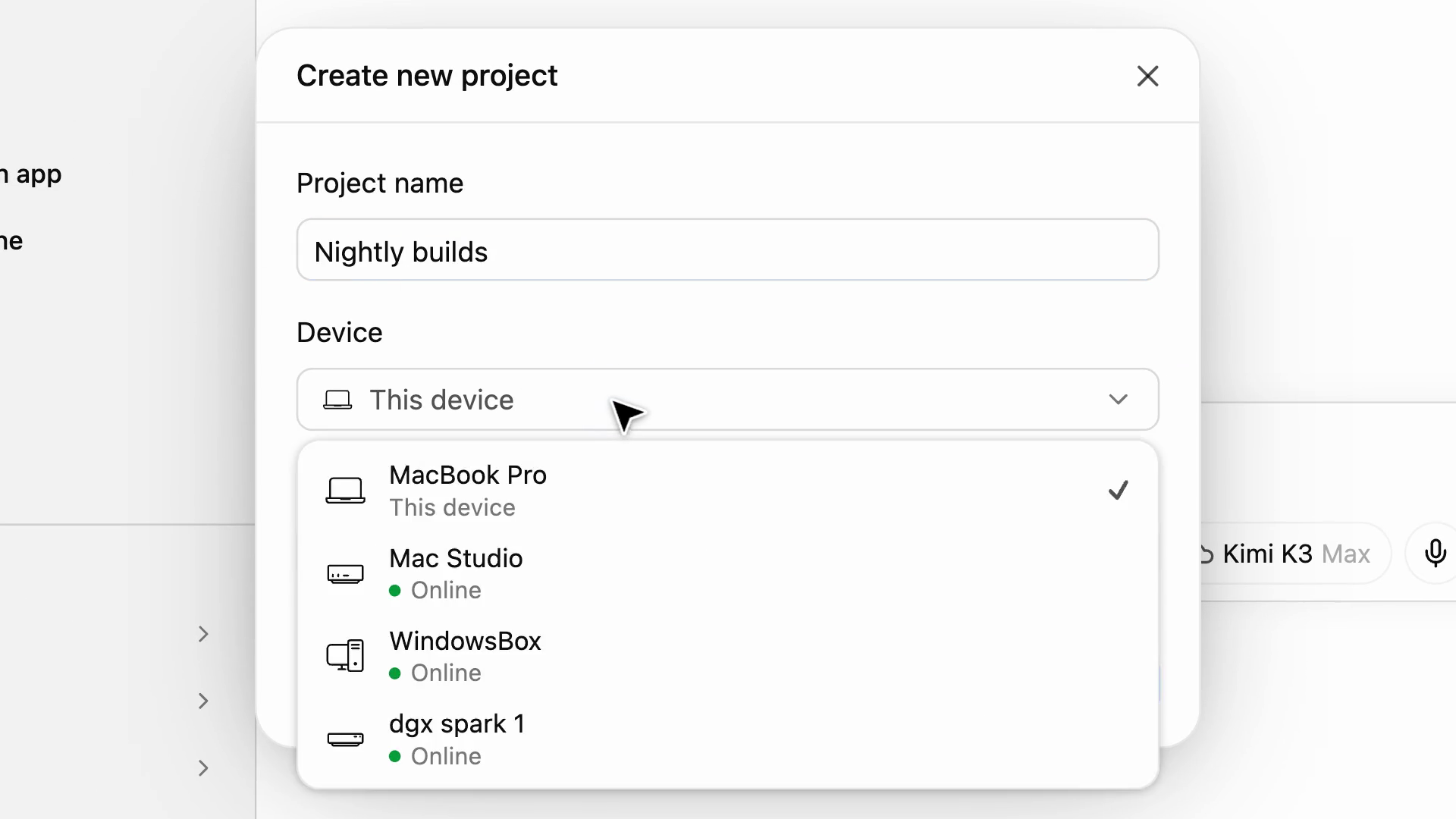
Pick the device when you create a project.
Your machines show up under Remote machines in the sidebar. Expand one to see its projects and chats, or hover over it to start a new project there.
Remote sessions work like local ones. The UI updates in real time as the agent works, and you can pick up any session where you left off.
When you create a project, choose the device it runs on. Every machine in your device network is listed, along with whether it's online.
Dispatch work with @
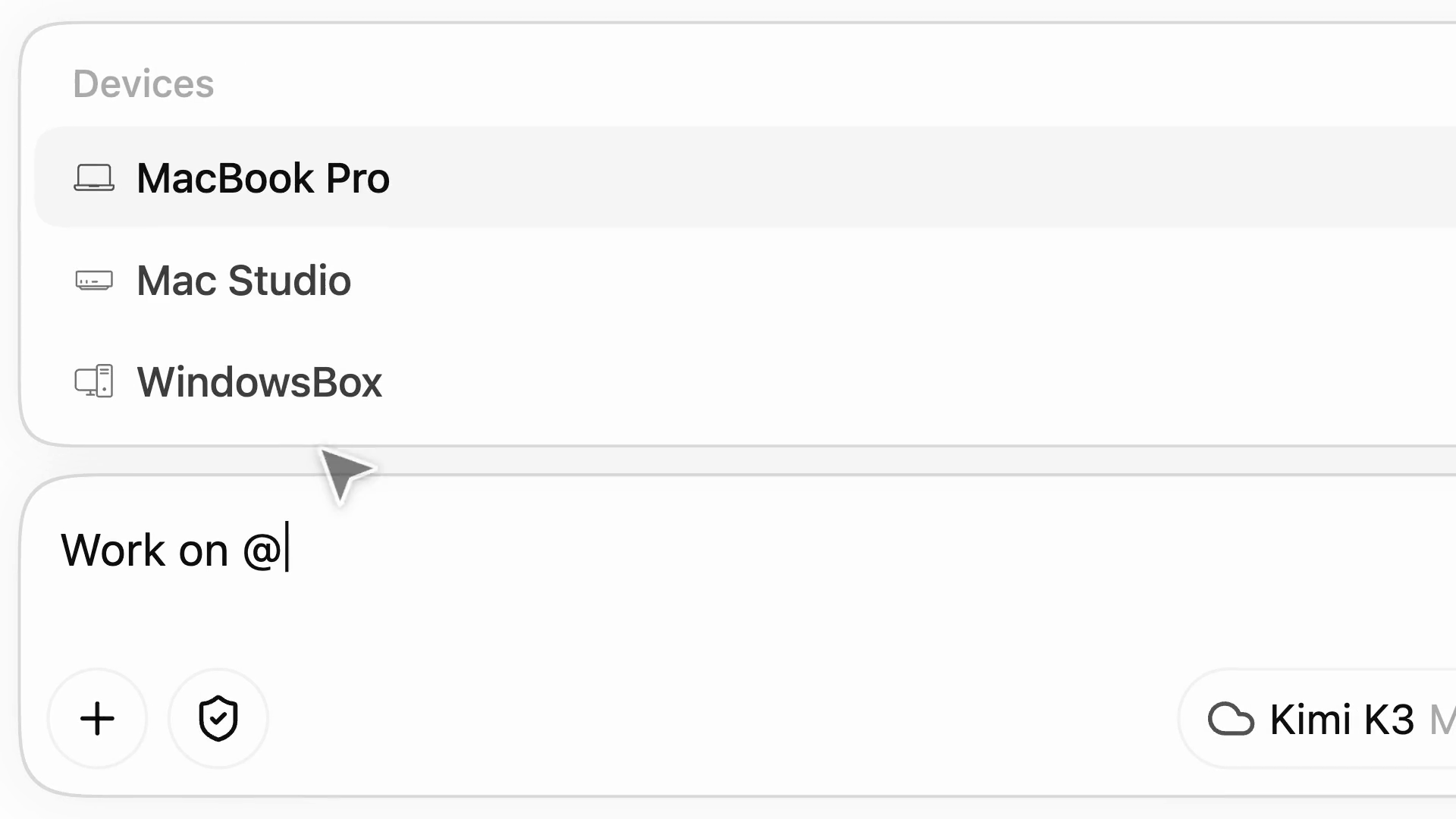
Type @ to mention a device.
You can also hand work to another machine from the session you're in. Type @ in the composer and pick a device.
Bionic starts a session on that machine and waits for it. On the remote machine, the message shows which session sent it.