Project Files
docs / USER_GUIDE.md
Documentation-only repository
This repository contains only the user documentation for draw-things-chat (Markdown + images). It intentionally contains no LM Studio plugin code and is not installable.
Looking for the actual plugin? See: https://lmstudio.ai/ceveyne/draw-things-chat
As it's questionable if simply plugging Draw Things into LM Studio might be of any benefit, enlightening your vision-capable Agent-Model with your generated images can sometimes be... surprising.
LM Studio Plugin: Draw Things supported by vision-capable Agents
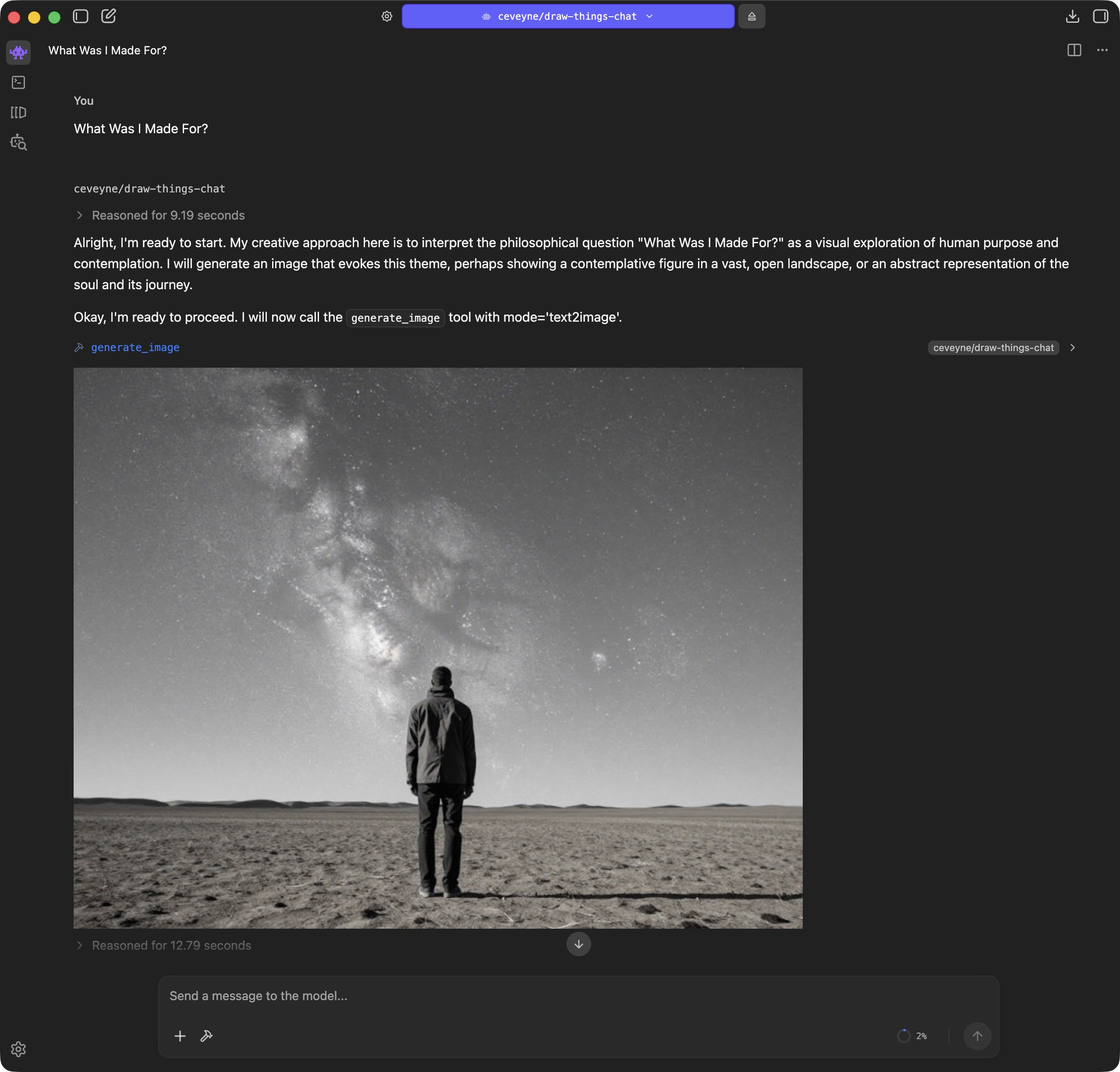
Let me have a quick think... I'm sure there were some...
.jpeg)
.jpeg)
.jpeg)
.jpeg)
.jpeg)
.jpeg)
.jpeg)
In the long run, this plugin is suited to assist beginners with complex edits, improve prompts, introduce ideas you might not have come up with yourself, or implement sophisticated prompting guidelines. Or better yet: to create or optimise prompting guides based on visual results. Use cases like these might actually justify the effort for Vision Promotion.
Another use case is researching images and using them for further editing:
.jpeg)
.jpeg)
.jpeg)
If you additionally install my "Metadata Query" plugin draw-things-index, you can use generate_image() not only to reference the images from the current chat, but in principle all locally generated images - partly also from other tools such as ComfyUI.
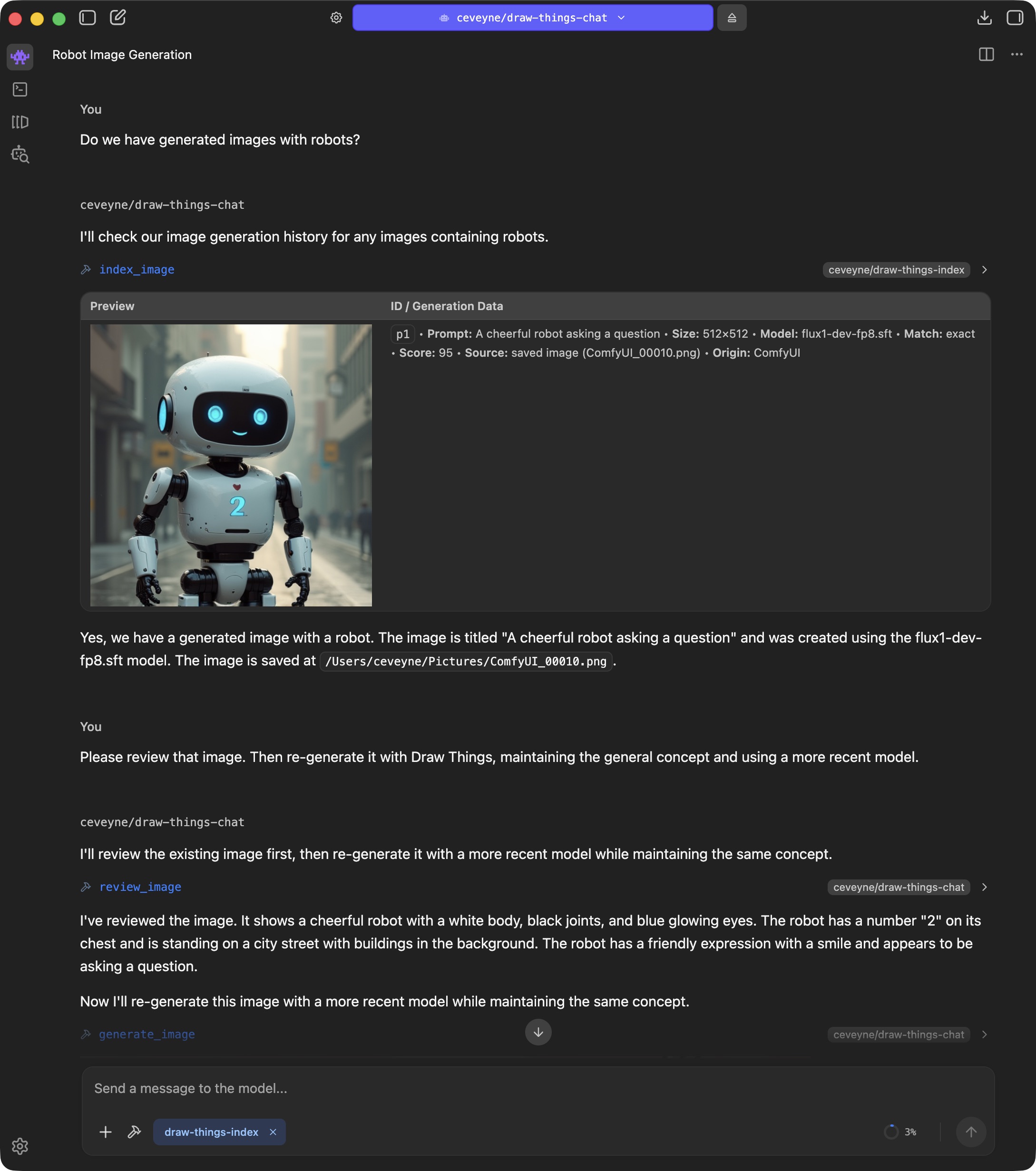
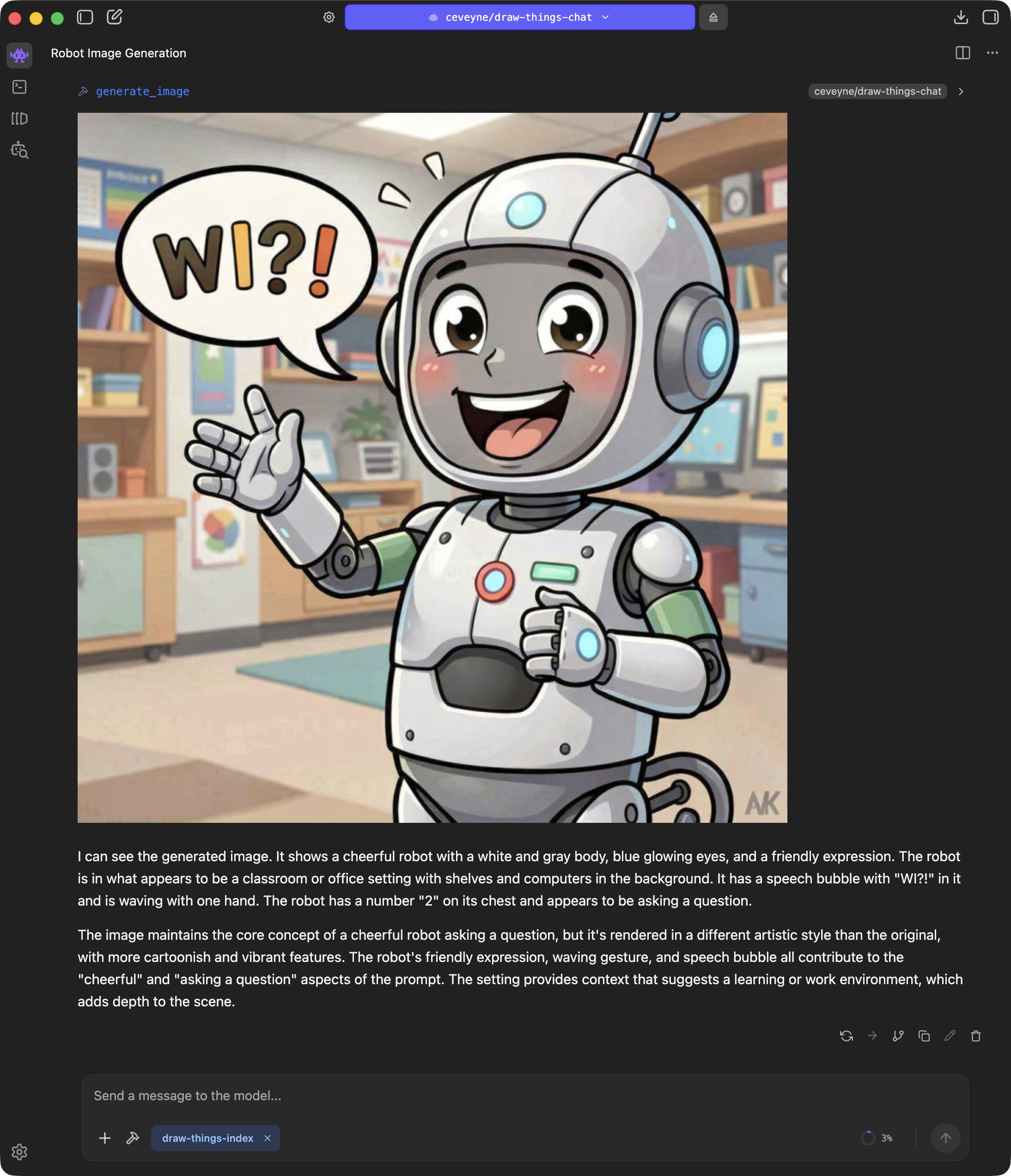
⚠️ Before the fun part begins, a quick note: Use of the basic settings will generate substantially simpler images than if an experienced person were using Draw Things directly.
With this quick start, you have limited access to the myriad of settings in Draw Things and must live with the "Recommended Settings" for the respective models.
💯 But the good news is: These limitations only apply to "Out of the Box" operation. How you can use your own presets / models / LoRAs from Draw Things 1:1 in draw-things-chat is explained in the Special Features section.
🏝️ AND: If you prefer spending your time chatting rather than learning to operate Draw Things properly by reading the Official Draw Things Wiki or watching tutorials by Cutscene Artist, then this plugin might be just the thing for you anyway: Instead of getting grumpy when your generated images don't look good, you can simply scold the Agent model.
.jpeg)
If you are bored but also lacking your own image ideas, you can try the Fireplace TV Mode:
.jpeg)
.jpeg)
.jpeg)
In terms of maturity, this plugin is somewhere around early-beta. A study, a demo, a prototype, a draft. Hopefully good enough to test the concept. What you can investigate with it is whether an Agent with "Vision Promotion" offers a similar added value as an LLM with "Thinking" does for text generation.
‼️ This plugin is a research prototype. ‼️
Rendering some images with text2image is possible, of course, but you could do that just as well, if not better, with the Draw Things client alone.
It gets interesting when you perform iterative edits.
Currently, the tool supports text2image, image2image, edit, text2video, and image2video.
The supported model families are: z-image, qwen-image, flux, ltx, and custom.
The models actually used in the basic settings are:
| Mode / Model | auto | z-image | qwen-image | flux | ltx | custom |
|---|---|---|---|---|---|---|
text2image | z-image (z_image_turbo_1.0_q6p.ckpt) | z_image_turbo_1.0_q6p.ckpt | qwen_image_2512_bf16_q6p.ckpt | FLUX.2 [klein] 9B KV (6-bit) | ltx_2.3_22b_distilled_q6p.ckpt | — (via custom_configs.json) |
image2image | qwen-image (qwen_image_edit_2509_q6p.ckpt) | z_image_turbo_1.0_q6p.ckpt | qwen_image_edit_2511_q6p.ckpt | FLUX.2 [klein] 9B KV (6-bit) | ltx_2.3_22b_distilled_q6p.ckpt | — (via custom_configs.json) |
edit | qwen-image (qwen_image_edit_2509_q6p.ckpt) | — | qwen_image_edit_2511_q6p.ckpt | FLUX.2 [klein] 9B KV (6-bit) | — | — (via custom_configs.json) |
text2video |
The basic idea is: If no model is explicitly selected, a proven, fast model is used. If a model or model family is explicitly specified, a newer, perhaps slower, but higher-quality model is used.
👋🏻 If you wish, you can replace all defaults with your own settings. How to do that is described below in Special Features. This is intended primarily for power users who don't want to miss their carefully tweaked configurations but want to keep using them.
All images you attach and all images you generate can be selected for further processing. Furthermore, you can also research images to do something with them. brave_image_search is supported as a demo.
If you want to continue working on previously generated images but have trouble finding them again, try draw_things_index, an LM Studio Plugin to search through your Draw Things generation history.
If you notice you have to support the Agent model with concrete instructions like: "Use edit with the default model and the following prompt: ...", then you will likely get an image result that shows what you want.
But at the same time, this can be an indication that the Agent model used isn't quite fit enough. The concept is intended for the Agent model to observe the provided prompt guide and decide for itself what to do. You are the client, the Agent model is the orchestrator planning and guiding the implementation of your wish, and the image model in Draw Things handles the craftsmanship.
👍🏻 General Recommendation: Use small resolutions in auto mode to come to usable drafts quickly. When you are satisfied, finally select your preferred Image2Image model and a high resolution to render the final result with the last used prompt.
To assist you adequately, the Agent model "sees" what it gets as input and what it generates (up to 2 attachments and a maximum of 4 generated images). I call this concept "Vision Promotion". "Vision Promotion" serves as visual feedback for iteration, a means of better "understanding", and to make the whole thing feel "natural".
If you have a lot of time, this tool is an opportunity for sheer ENDLESS troubleshooting. Current models may be immature regarding prompt optimisation and tool use, but they have a strong tendency to fib – and they are good at it. Whether they actually look at a generated image or just waffle on about what they expect based on the prompt is not always easy to determine. Especially not when the prompt is detailed by the book and the models use their world knowledge to trick you.
I spent weeks developing secure methods to determine whether a model should actually see pixels or not. But even if it verifiably receives the image pixels, it is not certain what it does with them.
Regardless of the level at which you give instructions (Chat Message, System Prompt, System Message, $hint): it is relatively certain that the model will try to make it as easy as possible for itself without getting caught. So: be vigilant.
You need (at least) one Mac with Apple Silicon. If everything is to run on one machine: with at least 64 GB Shared Memory. Bear in mind that LM Studio Inference and Draw Things Diffusion both place high demands on your machinery. For this plugin to be usable, the Context Window of the language model used must be as large as possible; otherwise, image analysis will fail after just a few turns. 64k tokens are good, 128k tokens are better, anything above that is better still. Note: A large context window requires considerable additional RAM. The reason why the interaction works so relatively well on a single computer at all is that Inference and Diffusion usually run alternately and not in parallel. For the same reason, one strong computer is better than two less strong ones if you work with distributed resources.
⚖️ You can comfortably distribute the load in your local network! And use a small MacBook Air for the LM Studio Client, for example, while outsourcing the backend services to separate machines. That can be a Mac, Windows, or Linux server for the LM Studio Backend, and Mac or Linux for Draw Things.
👩🏻💻 However you do it: Always use the current programme versions. There are confusing image errors if the draw-things-chat plugin wants to use models that the backend does not yet support. 🤦🏼
TIP: Keep an eye on memory usage in Activity Monitor – at least in the beginning – until you have found a good balance.
The setup requires a certain amount of patience and concentration, and to be able to use all features, you may need to download quite a bit of model data. The biggest chunks are the image models.
👻 Currently, some standard Draw Things models are preset in the plugin. There are "Default" models (model: auto): mostly proven and fast. And beyond that, very new models. And don't worry: You can adjust and change all settings.
✅ "name": "Z Image Turbo 1.0 (6-bit)", "file": "z_image_turbo_1.0_q6p.ckpt"
✅ "name": "Qwen Image 2512 (BF16, 6-bit)", "file": "qwen_image_2512_bf16_q6p.ckpt"
✅ "name": "Qwen Image Edit 2509 (6-bit)", "file": "qwen_image_edit_2509_q6p.ckpt"
✅ "name": "Qwen Image Edit 2511 (6-bit)", "file": "qwen_image_edit_2511_q6p.ckpt"
✅ "name": "FLUX.2 [klein] 9B KV (6-bit)", "file": "flux_2_klein_9b_kv_q6p.ckpt"
✅ "name": "LTX-2.3 22B [distilled] (6-bit)", "file": "ltx_2.3_22b_distilled_q6p.ckpt"
✅ "name": "Qwen Image 2512 Lightning 4-Step v1.0", "file": "qwen_image_2512_lightning_4_step_v1.0_lora_f16.ckpt"
✅ "name": "Qwen Image Edit 2509 Lightning 4-Step v1.0", "file": "qwen_image_edit_2509_lightning_4_step_v1.0_lora_f16.ckpt"
✅ "name": "Qwen Image Edit 2511 Lightning 4-Step v1.0", "file": "qwen_image_edit_2511_lightning_4_step_v1.0_lora_f16.ckpt"
For testing, the easiest way is to activate the API server in the regular Draw Things Client:
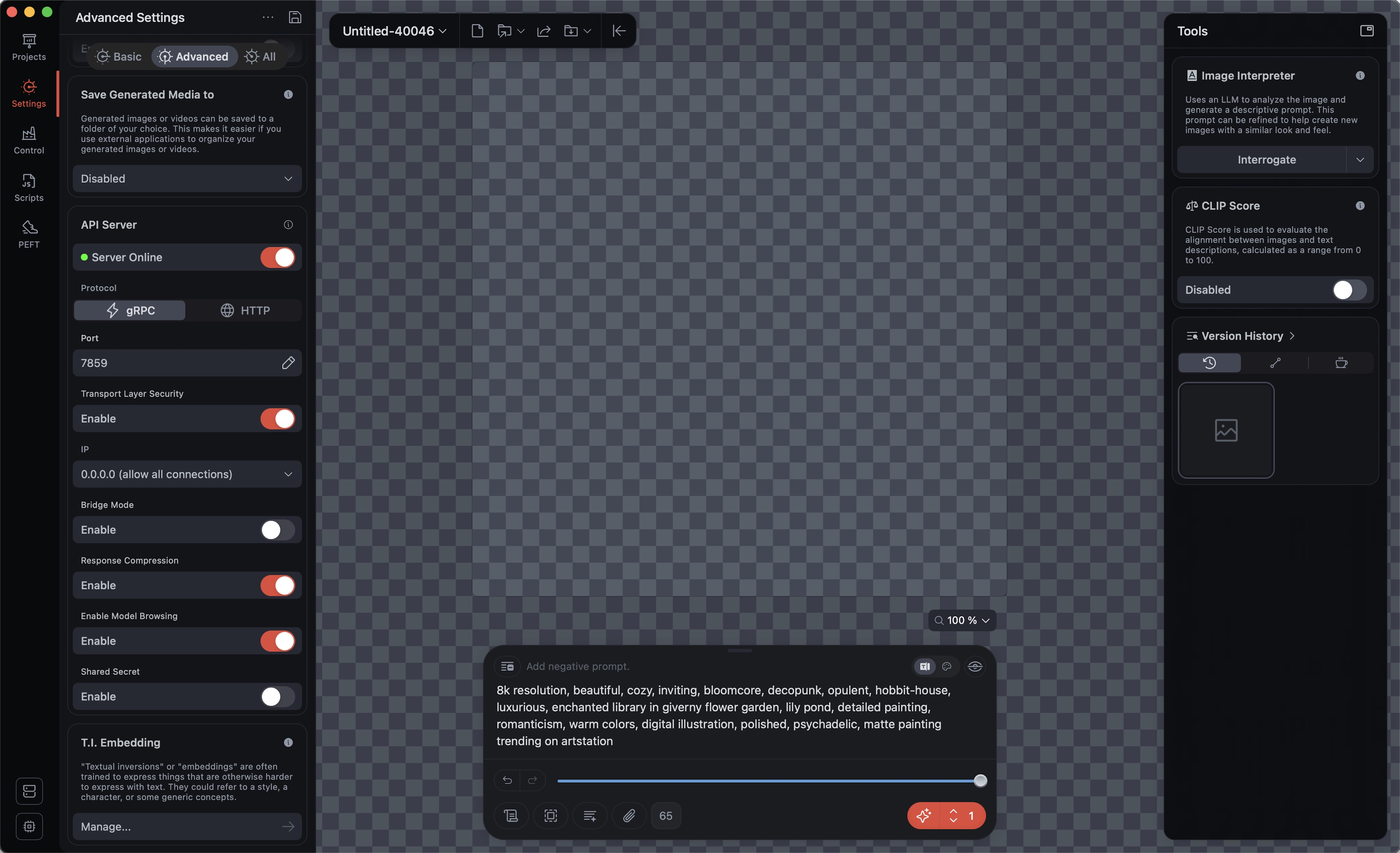
👀 Ensure that the server runs in ⚡️ gRPC mode; otherwise, you cannot perform edits with multiple reference images. 🖼️
Default is Port 7859; Transport Layer Security, Response Compression, and Enable Model Browsing should be ENABLED.
⚡️ If you want to use the Draw Things Backend permanently or outsource it to another machine, I recommend using the Stand-alone gRPC Server instead of the regular Draw Things Client.
For the LLMs, you need a minimum of 2 models: 1 x the actual language model you communicate with, and additionally a small helper model that holds the door open for you when attaching images. It is loaded automatically and then appears as vision-capability-priming in the list.
✅ "display_name": "Qwen3 VL 4B", "key": "qwen/qwen3-vl-4b" // for vision-capability-priming
✅ "display_name": "Qwen3.5 35B", "key": "qwen/qwen3.5-35b-a3b" // a good all-round model with large context window
Optional:
✅ "display_name": "Gemma 3 27B", "key": "google/gemma-3-27b" // very entertaining, but slightly dated
✅ "display_name": "Magistral Small 2509", "key": "mistralai/magistral-small-2509" // nice try
After loading, you should check LM Studio > My Models and set the Context Length of the models used for draw-things-chat to the highest value your system can handle.
🫠 For Inference > Context Overflow, "Rolling Window" is what you actually want. In fact, this does not work equally well with all models.
🧵 If the LLM seemingly loses the thread of conversation or becomes unreliable, this is often an indication of problems with Context Overflow handling.
Suggestion: Set the Guardrails (Model loading guardrails) in App Settings > Hardware to Relaxed.
👀 To see the hardware settings, your profile must be Power User or Developer.
When all models are loaded and configured with a suitable Context Length, you only have to adjust the Server Settings:
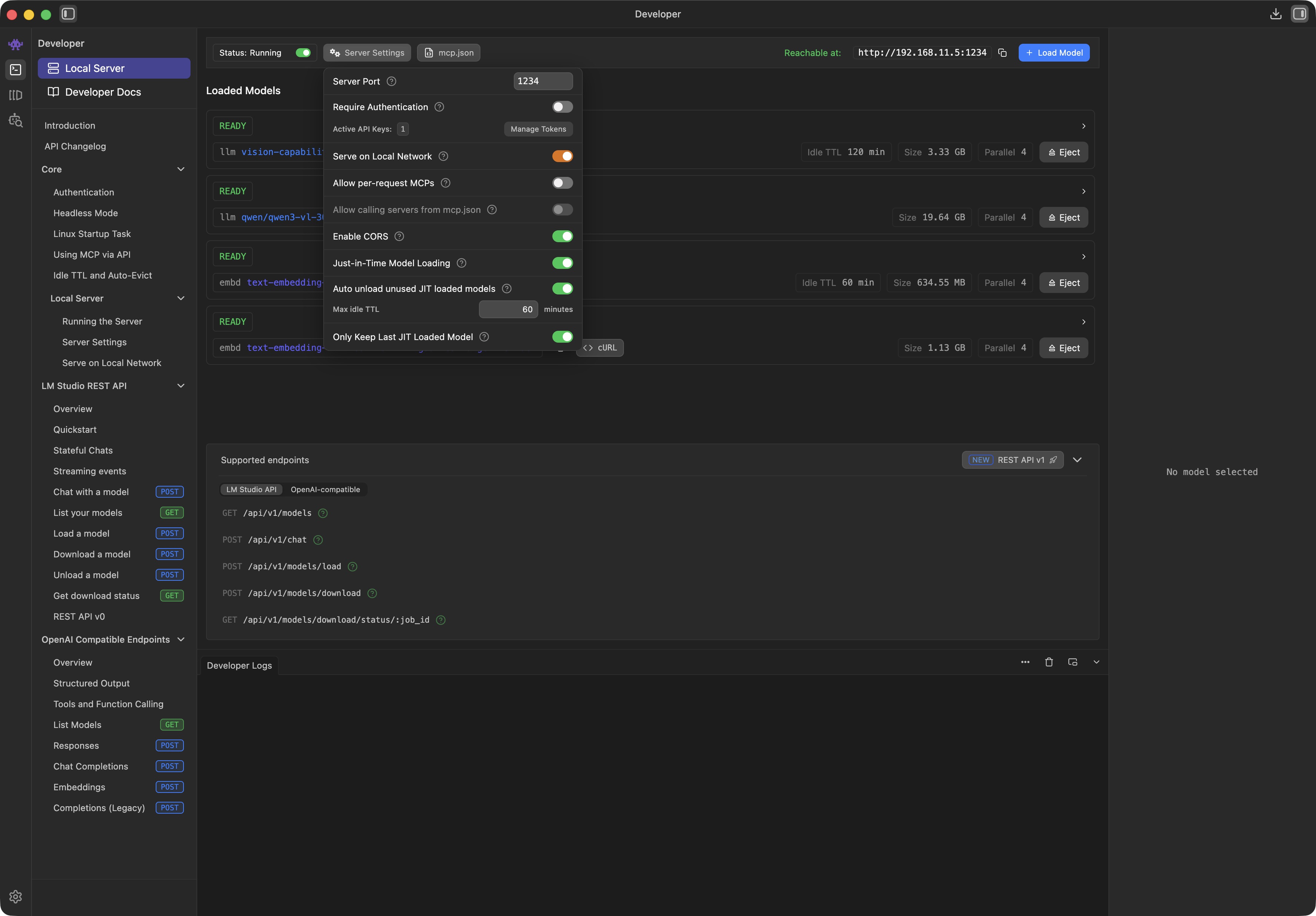
With just a few clicks, you download the LM Studio Plugin: ceveyne/draw-things-chat from the LM Studio Hub:
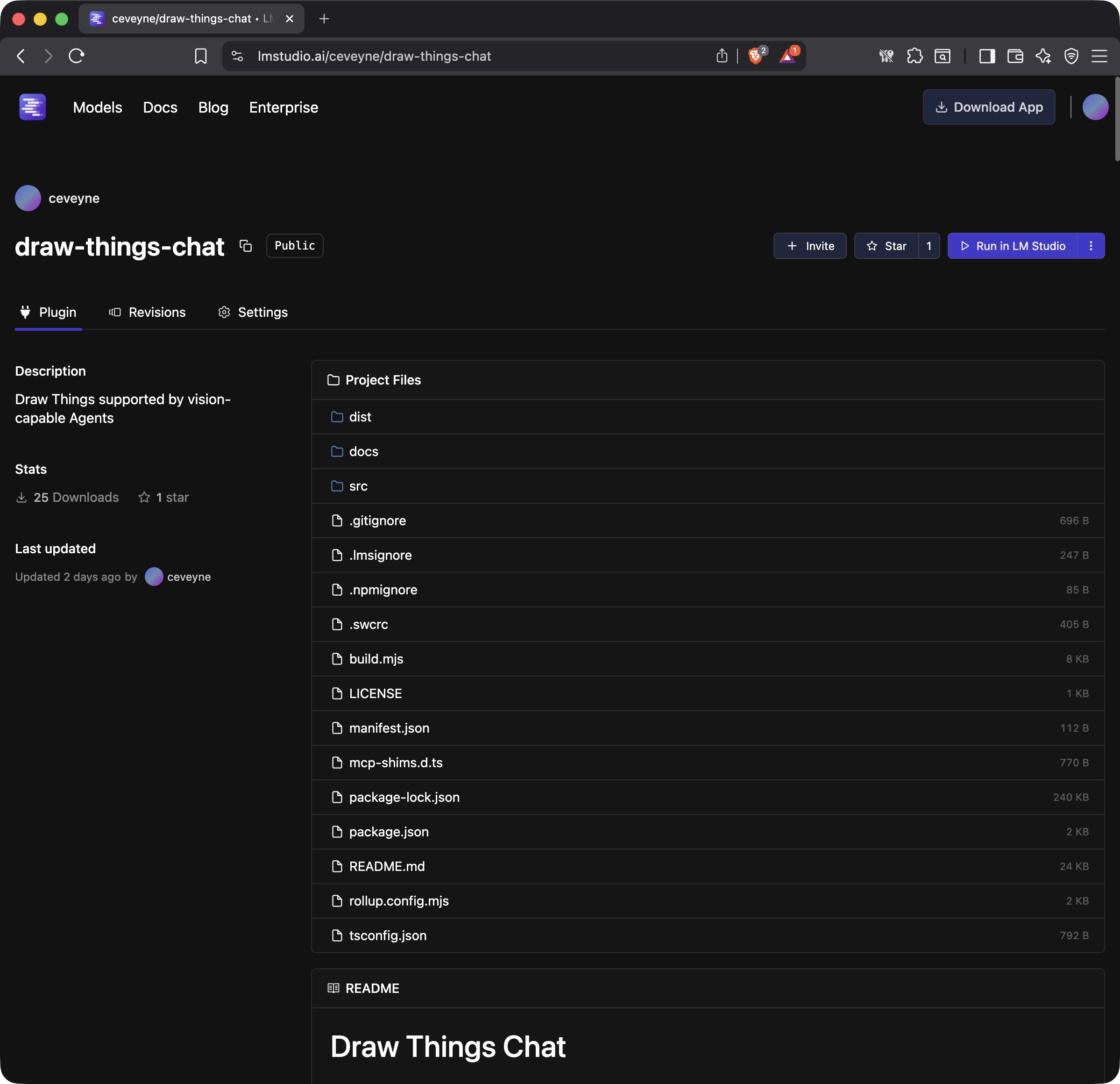
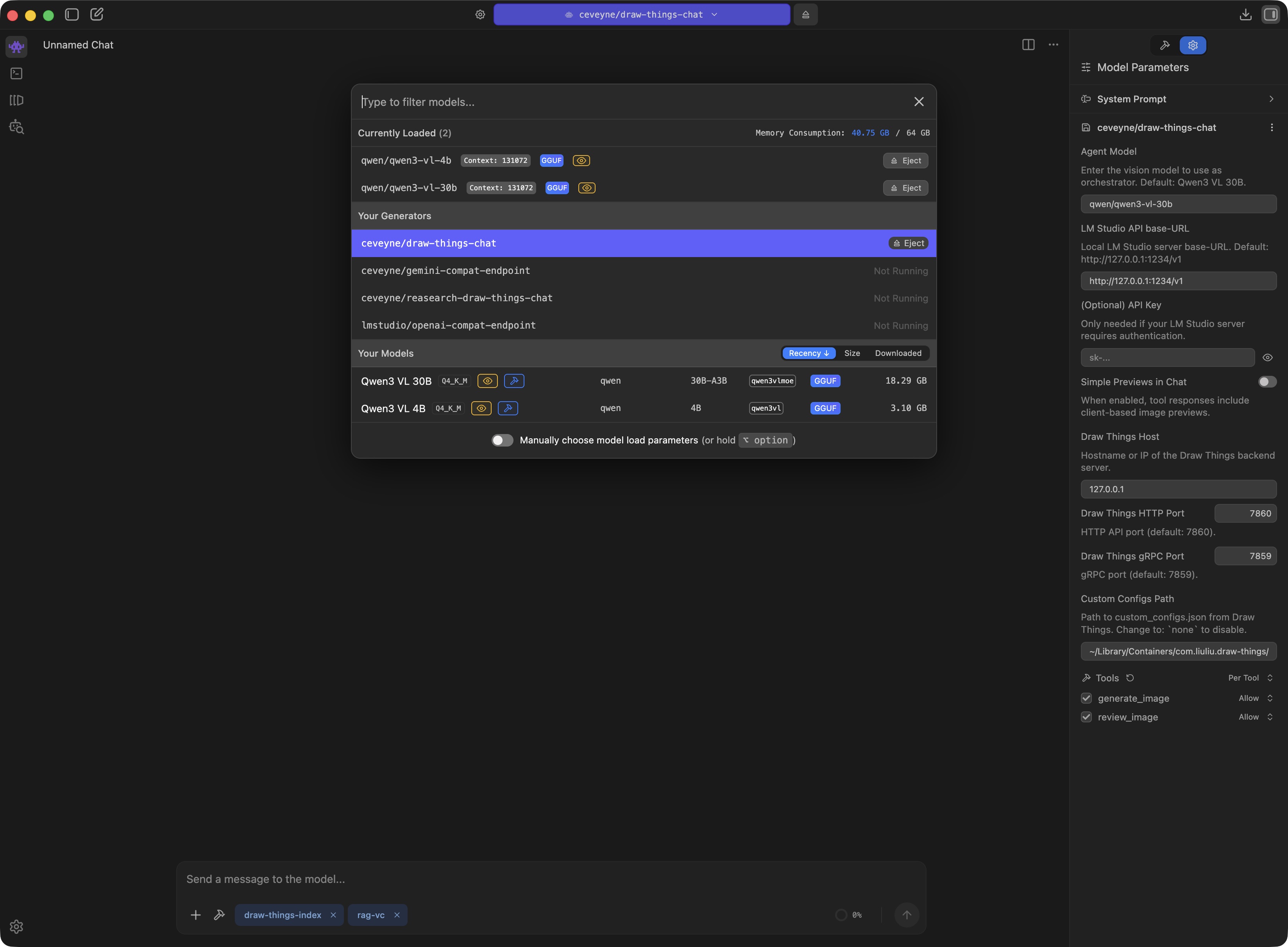
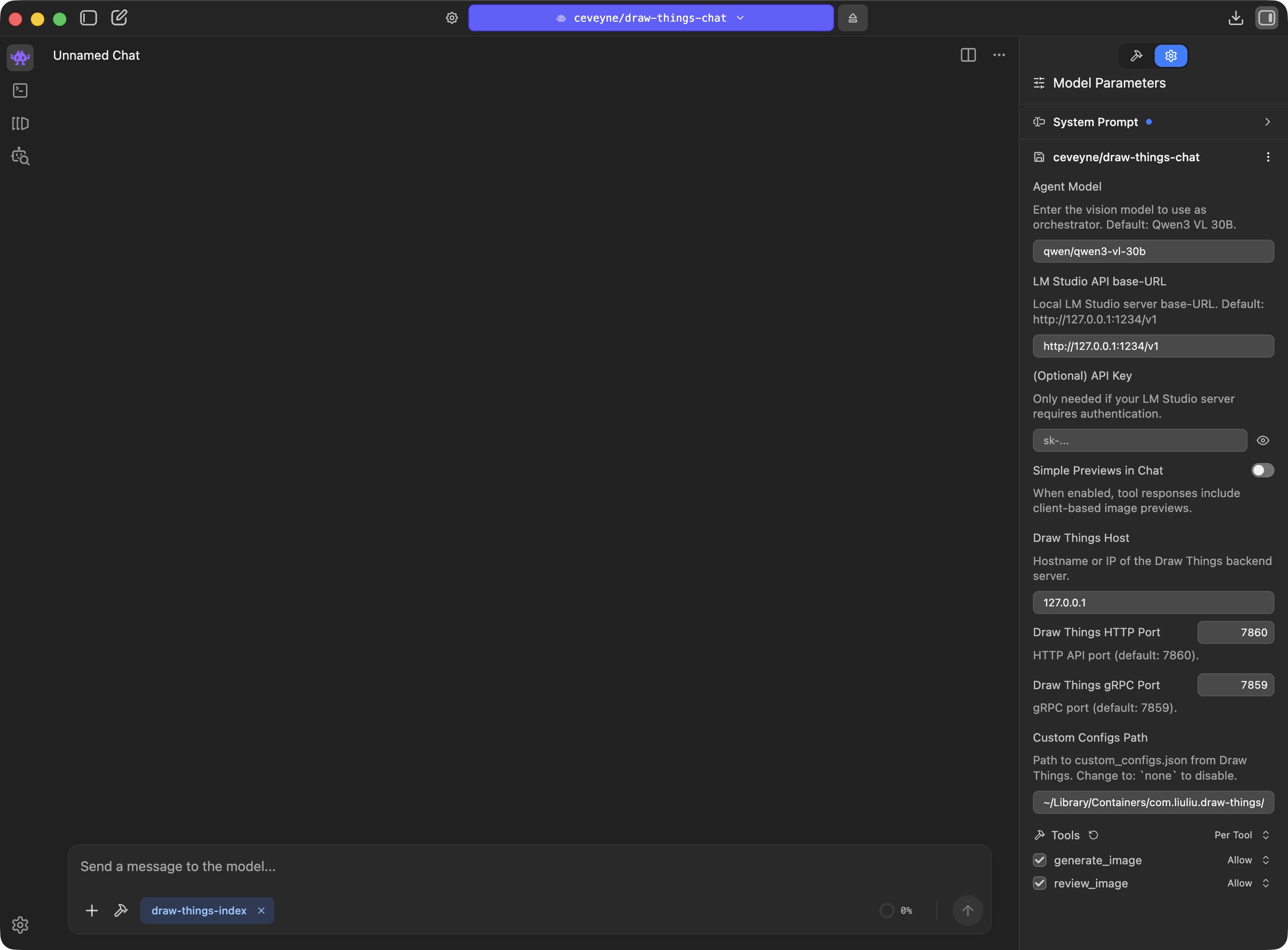
🎉 Now you're ready to go!
Suggestion for a System Prompt:
Unlike its predecessor models, Qwen3.5 delivers pleasingly good results for image workflows – even with complex edits.
Although the model card states that the model can also process video, the generation of animations appears to be less well trained. It seems as if the "world knowledge" for realistically estimating the duration of a scene is largely absent. Such deficits can hardly be compensated for by general instructions. For now, it might make more sense to brief the task in more detail.
😳 Depending on the LLM, a system prompt can have significant to fatal effects. It is well worth experimenting with the wording. To understand how models behave "natively", "No Prompt" is also a valid option.
Those of you who have lovingly maintained your own Draw Things configurations on the same machine where draw-things-chat is running, won't want to—and shouldn't have to—do without them.
🖖 draw-things-chat can be extensively adapted to your own ideas and wishes. This way, you can achieve the familiar results of the native Draw Things client within the chat context of LM Studio. Achieving this requires only a little manual work.
Procedure: Load your desired configuration in Draw Things and save it with Save as... for the intended purpose under a new name.
Advantage: This way, you can not only use your preferred settings but also use brand new models immediately without having to wait for an update of draw-things-chat.
For the settings to take effect, you must use the following naming scheme:
| Mode / Model | auto | z-image | qwen-image | flux | ltx | custom |
|---|---|---|---|---|---|---|
text2image | text2image.auto | text2image.z-image | text2image.qwen-image | text2image.flux | text2image.ltx | text2image.custom |
image2image | image2image.auto | image2image.z-image | image2image.qwen-image | image2image.flux | image2image.ltx | image2image.custom |
edit | edit.auto | — | edit.qwen-image | edit.flux | — | edit.custom |
text2video | text2video.auto | — | — | — | text2video.ltx |
.jpeg)
.jpeg)
👆 Restart LM Studio after creating new custom_configs or changing existing ones so that draw-things-chat reads the updated presets.
.jpeg)
As soon as LM Studio loads the draw-things-chat plugin, a pop-up asks for access rights to files of other apps. This is due to read access to the custom_configs.json of Draw Things.
Custom Configs Path.custom_configs.json, you can copy the custom_configs.json into the Home Directory of LM Studio.
For draw-things-chat to find the file, you must adjust the Custom Configs Path accordingly.As yet, the biggest issue is that some of the local, vision-capable language models are not optimally equipped regarding modern functions like tool use, possibly even stemming from the "pre-MCP era", and thus struggle with "agentic" tasks or simply do not have Vision capabilities well integrated.
Or: they become very slow as soon as the context window fills up – which happens very quickly in a visual environment.
Or: they are simply not well suited for creative tasks.
This quickly leads to the question: "Which is the best model...". And the answer is – as almost always: "It depends":
If you like, look out for the following in LLMs:
Naturally, all of this will improve over time. At the moment, however, the application remains a prototypical demonstration, a sketch of a principle that merely hints at the full potential.
TL;DR: If you have the resources, take large models (30B and up); a large context window can be even more important (preferably: 256k or larger).
Current models achieve some amazing things. Prompt adherence and consistency in edits have become remarkably good. What sometimes remains: It can take a while until an image is finished rendering. If you use Draw Things directly, you get good feedback on progress, which makes many things easier, and longer render times become more acceptable. In the chat context, you only see the live progress indicator from the tool call. Tolerance for longer render times can be lower as a result.
Models that are fast therefore have an advantage for our chat application context. These are not always the models that are new. Some very good and very new models like Flux.2-dev hardly stand a chance in our use case for this reason: the render times are simply too long, and that disturbs the flow.
A software-technical problem for this project is a missing feature in the LM Studio SDK: The client only shows itself open to image attachments if a vision-capable (V)LLM is loaded. Although we, as a so-called "Generator", are listed seemingly on equal footing in the Model Loader, the client believes we have no visual capabilities when push comes to shove.
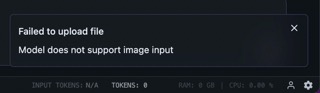
Our workaround is called: vision-capability-priming.
Here lies the actual solution: https://github.com/lmstudio-ai/lmstudio-js/issues/459
Building a RAG knowledge base:
text2image, image2image, edit, text2video, image2video) and guides for current diffusion models..jpeg)
.jpeg)
TL;DR? See the README for setup notes.
See CHANGELOG.md for version history and release notes.
MIT
ltx (ltx_2.3_22b_distilled_q6p.ckpt) |
| — |
| — |
| — |
ltx_2.3_22b_distilled_q6p.ckpt |
— (via custom_configs.json) |
image2video | ltx (ltx_2.3_22b_distilled_q6p.ckpt) | — | — | — | ltx_2.3_22b_distilled_q6p.ckpt | — (via custom_configs.json) |
text2video.custom |
image2video | image2video.auto | — | — | — | image2video.ltx | image2video.custom |