Open Responses with local models via LM Studio
We have partnered with OpenAI to support Open Responses - an open source specification based on the OpenAI Responses API.
The Open Responses API in LM Studio brings up several new useful features:
- Logprobs for generated tokens, along with candidate tokens
- Rich stats about cached and generated tokens
- Provide remote image URLs to VLMs
Please update to LM Studio 0.3.39 in-app, and ensure that your LLM engines are up to date:
lms runtime update llama.cpp # all platforms
lms runtime update mlx # macOS only
Open Responses
Open Responses is an open-source specification and ecosystem designed to make calling LLMs provider-agnostic. It defines a shared schema and tooling layer that enables a unified experience for interacting with LLMs, streaming results, and composing agentic workflows completely independent of the model provider. This tooling layer makes real-world agentic workflows work consistently, regardless of where the model lives.
Open Responses in LM Studio
Back in October, we brought up a compatibility endpoint for OpenAI’s /v1/responses API. Today we are adding support for Open Responses by making our /v1/responses endpoint compatible with the Open Responses specification. This will allow you to continue using /v1/responses + gain new features brought for Open Responses compliance.
Using LM Studio as a Model Provider with Open Responses
To serve models with LM Studio, first turn on the local LM Studio server.
Turn on the server in the LM Studio GUI
In the LM Studio app, head to the Developer tab and toggle the server status to be running.
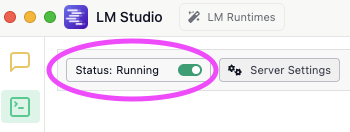
LM Studio server status "Running"
Turn on the server using LM Studio's CLI
Run the following command in your local terminal to turn on your local server:
lms server startOnce your local server is running, set the URL in your request body to http://localhost:1234/v1/responses. We also discuss a few interesting features and parameters in the following section.
curl http://localhost:1234/v1/responses \
  -H "Content-Type: application/json" \
  -d '{
  "model": "google/gemma-3-4b",
  "input": [
    {
      "role": "user",
      "content": [
        {"type": "input_text", "text": "Describe this image in 1 word"},
        {
          "type": "input_image",
          "image_url": "https://www.google.com/images/branding/googlelogo/2x/googlelogo_color_272x92dp.png"
        }
      ]
    }
  ],
  "include": [
    "message.output_text.logprobs"
  ],
  "top_logprobs": 3
}'
Log Probabilities
You can view the logarithms of the probability (log(probability between 0 and 1) = logprob) that a specific token was chosen by the model. The closer the logprob is to zero, the more likely the token was chosen.
Enabling log probabilities allows you to see more details about how confident the model was in selecting its response.
Example output
In response to the above request, you will see output like:
{
  "type": "output_text",
  "text": "Google",
  "annotations": [],
  "logprobs": [
    {
      "token": "Google",
      "logprob": -0.000024199778636102565,
      "bytes": [...],
      "top_logprobs": [
        {
          "token": "Google",
          "logprob": -0.000024199778636102565,
          "bytes": [...]
        },
        {
          "token": "Search",
          "logprob": -10.62996768951416,
          "bytes": [...]
        },
        {
          "token": "Alphabet",
          "logprob": -21.614439010620117,
          "bytes": [...]
        }
      ]
    }
  ]
}
This means that the model selected the token "Google", but also considered "Search" and "Alphabet" as possible tokens, with much lower probabilities.
Token Caching
Token or prompt caching is a feature that enables LLM engines to reuse expensive computation when large parts of the input remain unchanged. This /v1/responses update enables you to see how many tokens were cached from previous requests.
For example, you may have a long-running conversation with a model, in which the model may have generated hundreds or thousands of tokens:
curl http://localhost:1234/v1/responses \
  -H "Content-Type: application/json" \
  -d '{
  "model": "google/gemma-3-4b",
  "input": "Tell me a long story"
}'
When you follow-up with a new request like:
curl http://localhost:1234/v1/responses \
  -H "Content-Type: application/json" \
  -d '{
  "model": "google/gemma-3-4b",
  "input": "Summarize it in 1 sentence",
  "previous_response_id": "<id from the response to the first request>"
}'
You will see in the response's usage field how many tokens were cached from the previous request:
"usage": {
  "input_tokens": 1293,
  "output_tokens": 42,
  "total_tokens": 1335,
  "input_tokens_details": {
    "cached_tokens": 1276
  },
  "output_tokens_details": {
    "reasoning_tokens": 0
  }
},
In this example, 1276/1293 input tokens were able to be reused from the previous request, saving compute and latency.
Token caching is enabled by default, and will always be present in API responses.
Remote Image URLs
You can now include remote images in your request by passing in the image URL to the vision-enabled models:
curl http://localhost:1234/v1/responses \
  -H "Content-Type: application/json" \
  -d '{
  "model": "google/gemma-3-4b",
  "input": [
    {
      "role": "user",
      "content": [
        {"type": "input_text", "text": "What do you see?"},
        {
          "type": "input_image",
          "image_url": "https://www.google.com/images/branding/googlelogo/2x/googlelogo_color_272x92dp.png"
        }
      ]
    }
  ]
}'
To which the model responds:
{
  "type": "output_text",
  "text": "I see the Google logo! It’s in its signature blue and red color scheme, with the letters “Google” outlined in orange and yellow. \n\nIt's a very recognizable image! 😊 \n\nDo you want to tell me anything about it or what you were thinking when you showed it to me?",
}
Next steps: Start building!
Download LM Studio, fire up your favorite IDE, and get building with Open Responses.
To learn more about Open Responses, visit openresponses.org to read the specification and notes for implementation.
More Resources
- We are hiring! Check out our careers page for open roles.
- Download LM Studio: lmstudio.ai/download
- Report bugs: lmstudio-bug-tracker
- X / Twitter: @lmstudio
- Discord: LM Studio Community