Double check computer meets the minimum [system requirements](/docs/system-requirements).
You might sometimes see terms such as `open-source models` or `open-weights models`. Different models might be released under different licenses and varying degrees of 'openness'. In order to run a model locally, you need to be able to get access to its "weights", often distributed as one or more files that end with `.gguf`, `.safetensors` etc.
Getting up and running [#getting-up-and-running]
First, **install the latest version of LM Studio**. You can get it from [here](/download).
Once you're all set up, you need to **download your first LLM**.
Download an LLM to your computer
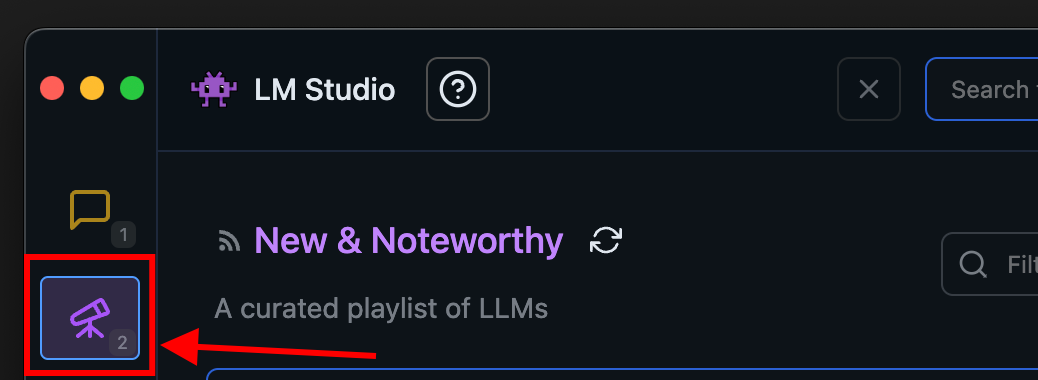
Head over to the Discover tab to download models. Pick one of the curated options or search for models by search query (e.g. `"Llama"`). See more in-depth information about downloading models [here](/docs/basics/download-models).
Load a model to memory
Head over to the **Chat** tab, and
1. Open the model loader
2. Select one of the models you downloaded (or [sideloaded](/docs/advanced/sideload)).
3. Optionally, choose load configuration parameters.

What does loading a model mean?
Loading a model typically means allocating memory to be able to accommodate the model's weights and other parameters in your computer's RAM.
Chat!
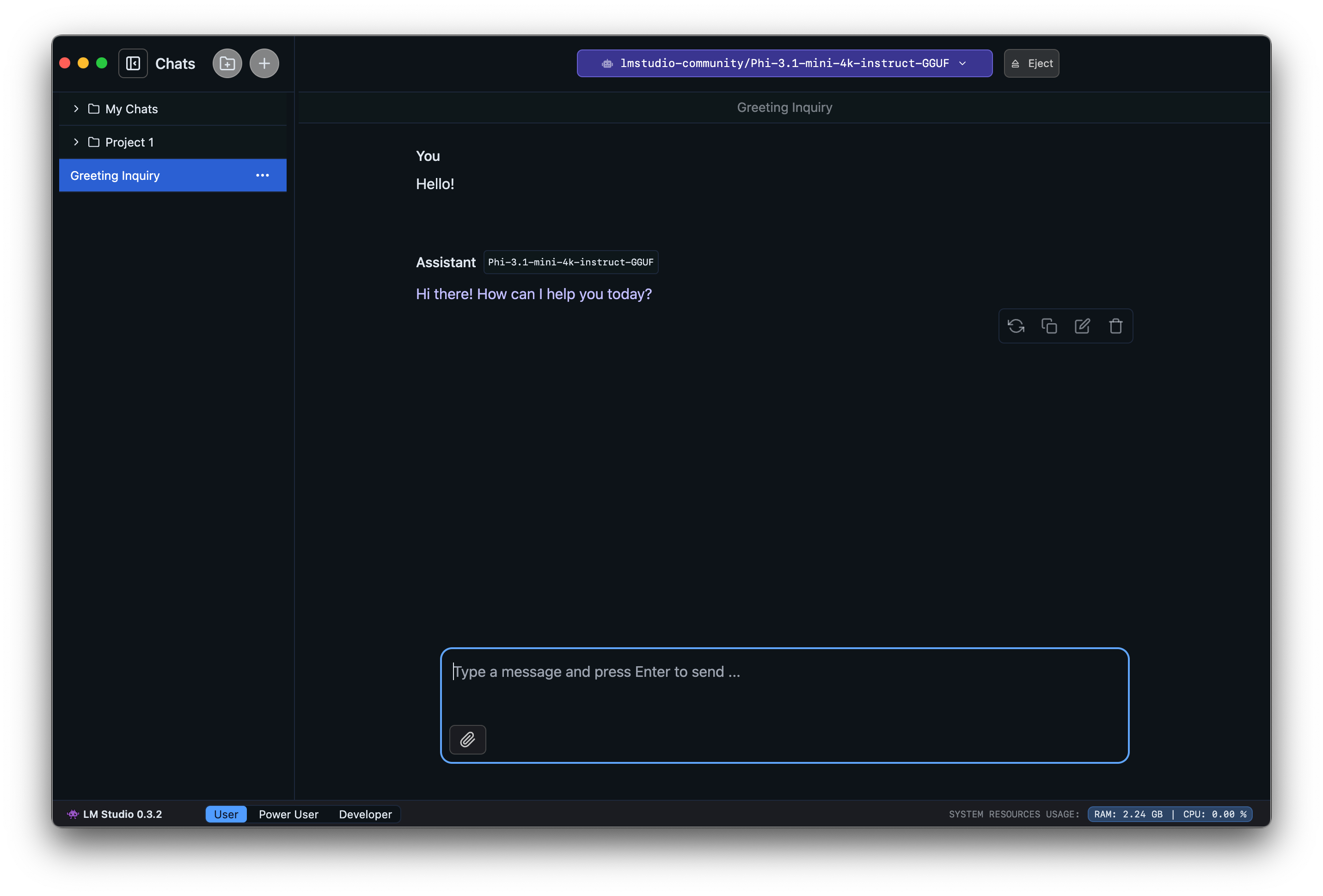
Once the model is loaded, you can start a back-and-forth conversation with the model in the Chat tab.
Community [#community]
Chat with other LM Studio users, discuss LLMs, hardware, and more on the [LM Studio Discord server](https://discord.gg/aPQfnNkxGC).